“The WiFi isn’t working” is among the most common guest messages, and a bad connection can colour an entire review, especially for guests who work remotely. Most outages come from a short list of causes.
Walk the guest through the basics
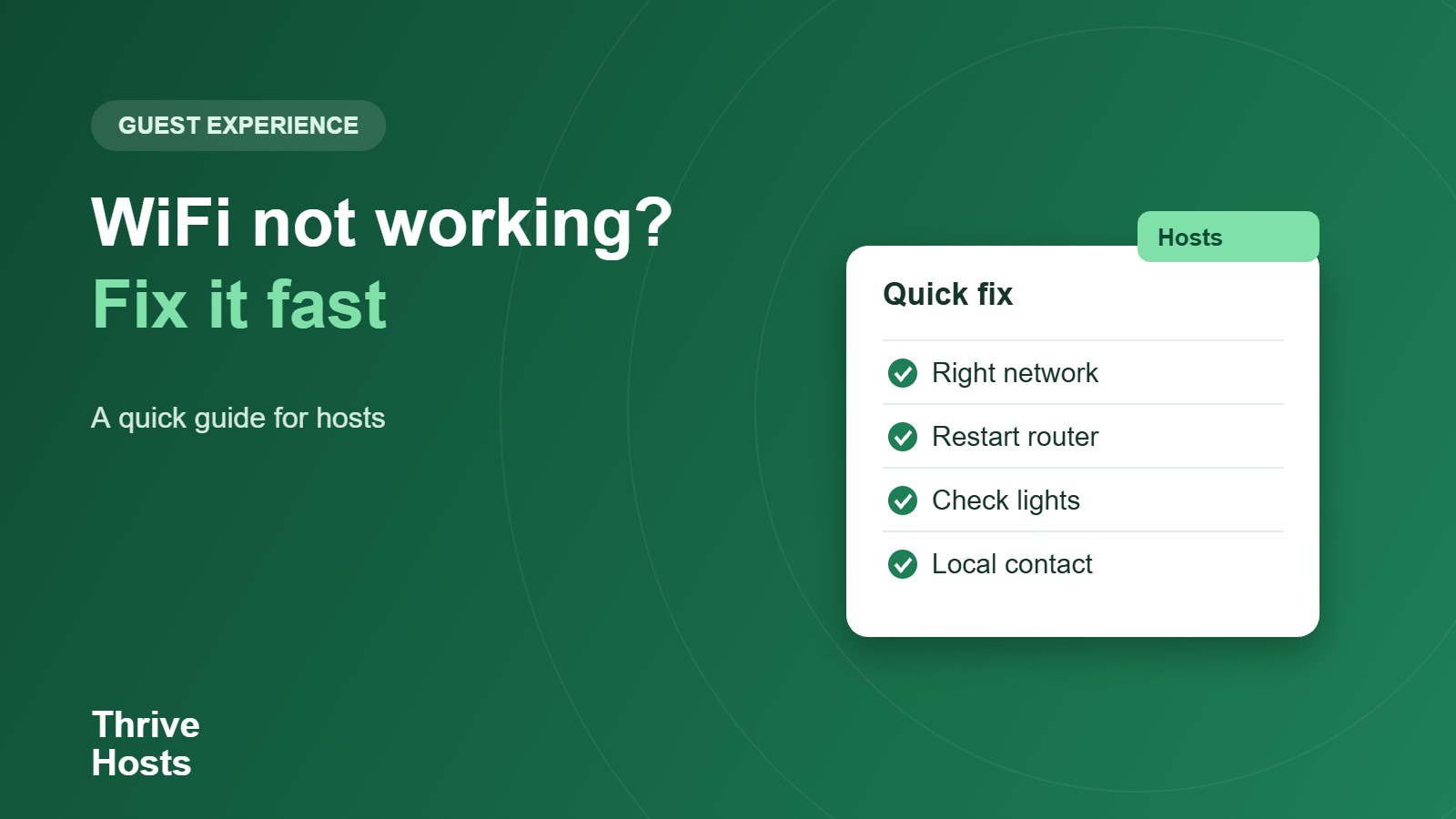
- Ask them to confirm they are on the right network and have typed the password exactly, including capital letters.
- Ask them to restart the router by unplugging it for about thirty seconds and plugging it back in.
- Check that the router lights look normal and the cables are firmly seated.
- Ask whether other devices connect, which separates a device problem from a router problem.
- If you can, check the router remotely or ask your provider whether there is an outage.
Make it easy before they need help
- Put the network name and password in the house manual and on a card in the property.
- Include a photo of the router and where its power cable is.
- Keep the provider’s support number somewhere you can find it fast.
- Consider a backup option, such as a second router or a mobile hotspot you can send in a pinch.
Set honest expectations
If the internet is slow in a rural area, say so in your listing rather than letting guests find out. A realistic description is better than an upset review. See our guide on common guest complaints for other issues that start with a mismatch in expectations.
Working remotely
If you cannot visit quickly, line up a local contact who can restart equipment, and use smart plugs or a router with remote management if your setup supports it. Check what is allowed and safe for your property before adding devices.
Want tech issues triaged for you?
We handle guest messaging and local-contact coordination remotely, so a WiFi problem gets a clear, quick response at any hour.
Talk to us about co-hosting
Bruce J is the CEO of Thrive Hosts and leads the short-term rental team. He works on the operations and performance side of STR: guest communication, pricing and calendar discipline, turnovers, issue tracking and owner reporting across Airbnb, Vrbo and Booking.com. On the blog he writes practical, no-fluff guides for owners and operators who want their rentals to run more consistently.